»
Home
Instruments
Sampler / Fx / Kits
Cubase LE: Loading Master Hammond B3 VSTi and Selecting Presets.
This opens the VST Inputs window, which allows you to activate audio inputs connected to your audio hardware.
This opens the VST Instruments window, where you can select up to 8 VST Instruments. When a VST Instrument has been selected for a slot in the window, the corresponding instrument is selectable as a destination on the MIDI output pop-up for MIDI tracks.
The VST Outputs window shows the output buses connected to the physical outputs on your audio hardware
Steps
Put the Master Hammond B3 demo into VST Plug-ins folder
Start Cubase LE
Create a MIDI track
Go to menu Devices and click on VST instruments
Select Master Hammond B3 demo
Go to MIDI output and select Master Hammond B3 demo
Remember connect your Keyboard via MIDI or USB port and verify it in MIDI INPUTS
Selecting Presets in other VST hosts:
Selecting Presets in FL Studio
.
Selecting Presets in Ableton Live
Locating Presets in Steinberg Cubase VST host.
Selecting Presets in Cakewalk Sonar
Selecting Presets in Sony Acid Pro
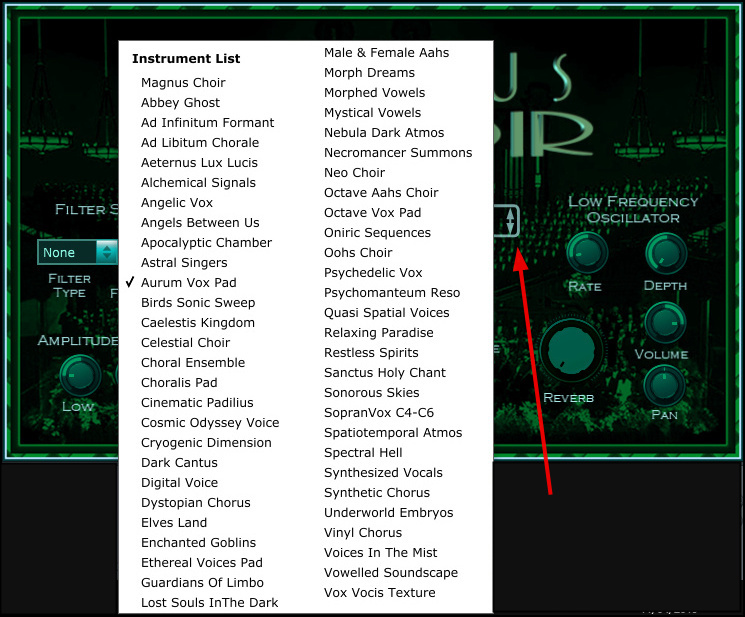
Magnus Choir VSTi Hosted by QuickScore Elite Level II
Syntheway Strings On Magix Music Maker VST Host
Magnus Choir's Presets in MakeMusic Finale 2010
Changing Presets in Steinberg Cubase VST32 v5
PGMusic Band-in-a-Box
Sibelius v5
PreSonus Studio One
Cubase LE: Loading VSTi Plugin and Selecting Presets.
Selecting Magnus Choir Presets in Synapse Orion v7.62
Selecting Magnus Choir Presets in MAGIX Samplitude Music Studio
VST is a trademark of Steinberg Soft- und Hardware GmbH
Syntheway Virtual Musical Instruments © 2004-2012 Daniel Alberto Laiseca| Buenos Aires - Argentina|